

macOS
Tested on macOS 10.15.4. The sensor hostname is os-991234567890.local (serial number on the sticker on top of the sensor).
Connecting the Sensor
- Connect the sensor to an available Ethernet port on the host machine or router.
- The sensor automatically obtains an IP address via link-local or DHCP, depending on network configuration.
Note: It can take up to 60 seconds to obtain an IP address after initial power-up.
The Sensor Homepage
- Enter
http://os-991234567890.local/in your browser’s address bar to open the sensor homepage.
Note: If the sensor homepage does not load, follow the steps in Determining the IPv4 Address of the Sensor to verify the sensor has a valid IP address.
Determining the IPv4 Address of the Sensor
-
Open Terminal (Cmd+Space, type
Terminal, press Enter). -
Ping the sensor to find its IPv4 address:
Command
Example
Note: If this command hangs, configure your interface to link-local first.
Response
Note: In this example, the sensor IPv4 address is
192.0.2.130. An address of the form169.254.x.xmeans it is connected via link-local.
- Alternatively, resolve the sensor IP using
dns-sd:
Command
Example
Response
Note: An address of the form
169.254.x.xmeans the sensor is connected via link-local.
Determining the IPv4 Address of the Interface
Identify the IPv4 address of the interface the sensor is connected to (e.g., en1 in the example below).
-
Open Terminal (Cmd+Space, type
Terminal, press Enter). -
View the IPv4 address of your interfaces:
Command
Example
Response
- In this example, the sensor is plugged into interface
en1. - The host IPv4 address is on the
inetline — here,169.254.1.100.
Note: An interface address of the form
169.254.x.xmeans macOS self-assigned a link-local address in the absence of a DHCP server.
Setting the Host Interface to DHCP
Set the interface to obtain an IP address automatically via DHCP.
Command
Example — with interface name en1:
Response: (no output)
Note: Verify the change with
ifconfig. Theinetline foren1will show the DHCP or link-local self-assigned address once a cable is connected.
Setting the Host Interface to Static IP
Assign a static IPv4 address to the interface.
Command
Example — with interface en1, IPv4 192.0.2.1, subnet mask 255.255.255.0:
Note:
/24is shorthand for Subnet Mask255.255.255.0.
Response: (no output)
Note: Verify the change with
ifconfig. Theinetline foren1will show the static address, e.g.,192.0.2.1.
Finding a Sensor
With mDNS Service Discovery (dns-sd):
- Browse for all sensors and their service details:
Command
Example
Response
- Resolve the sensor IPv4 address by hostname:
Command
Example
Response
Note: In this example, the sensor IPv4 address is
192.0.2.130.
With Discovery App:
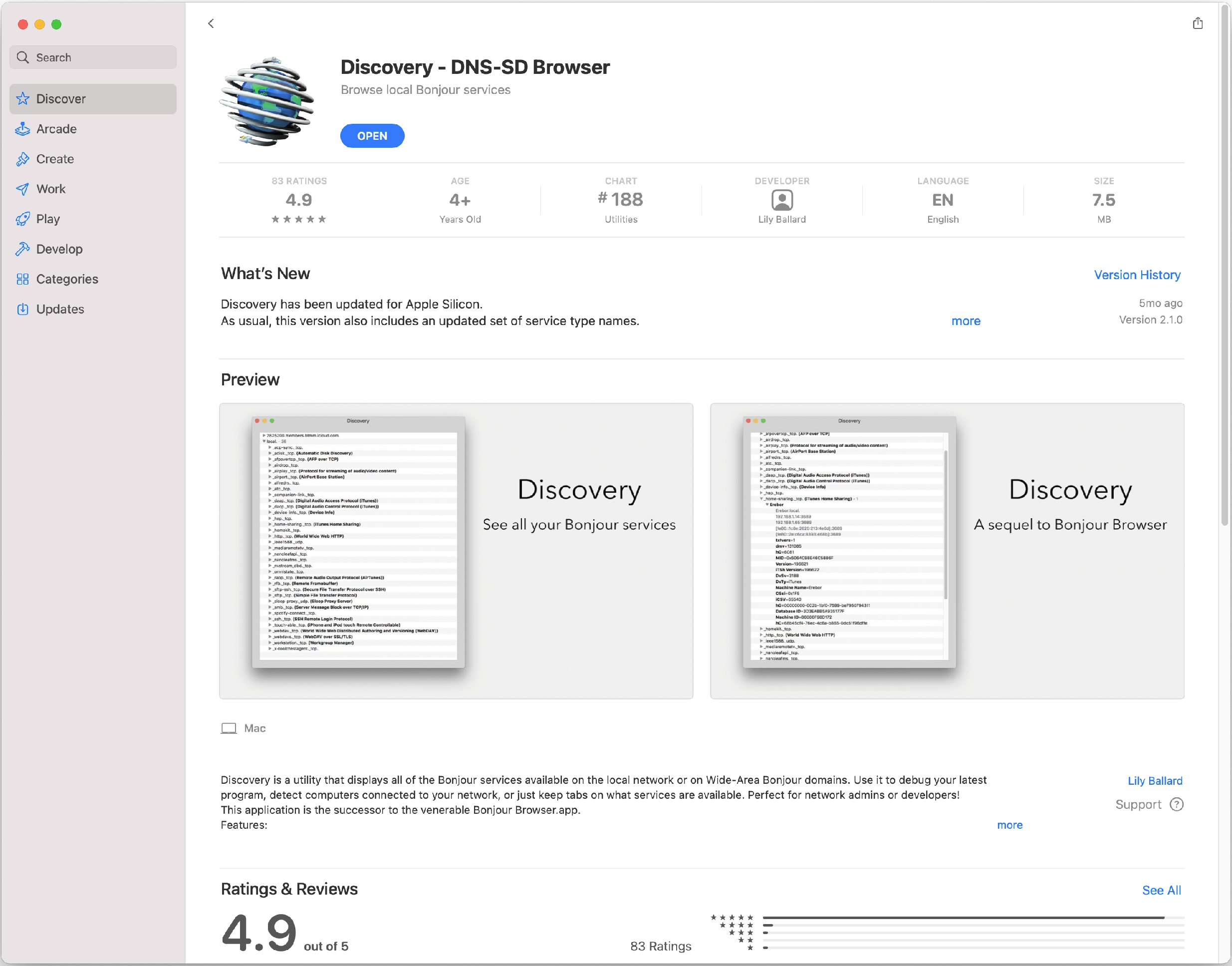
Step 1: Download Discovery DNS-SD Browser.
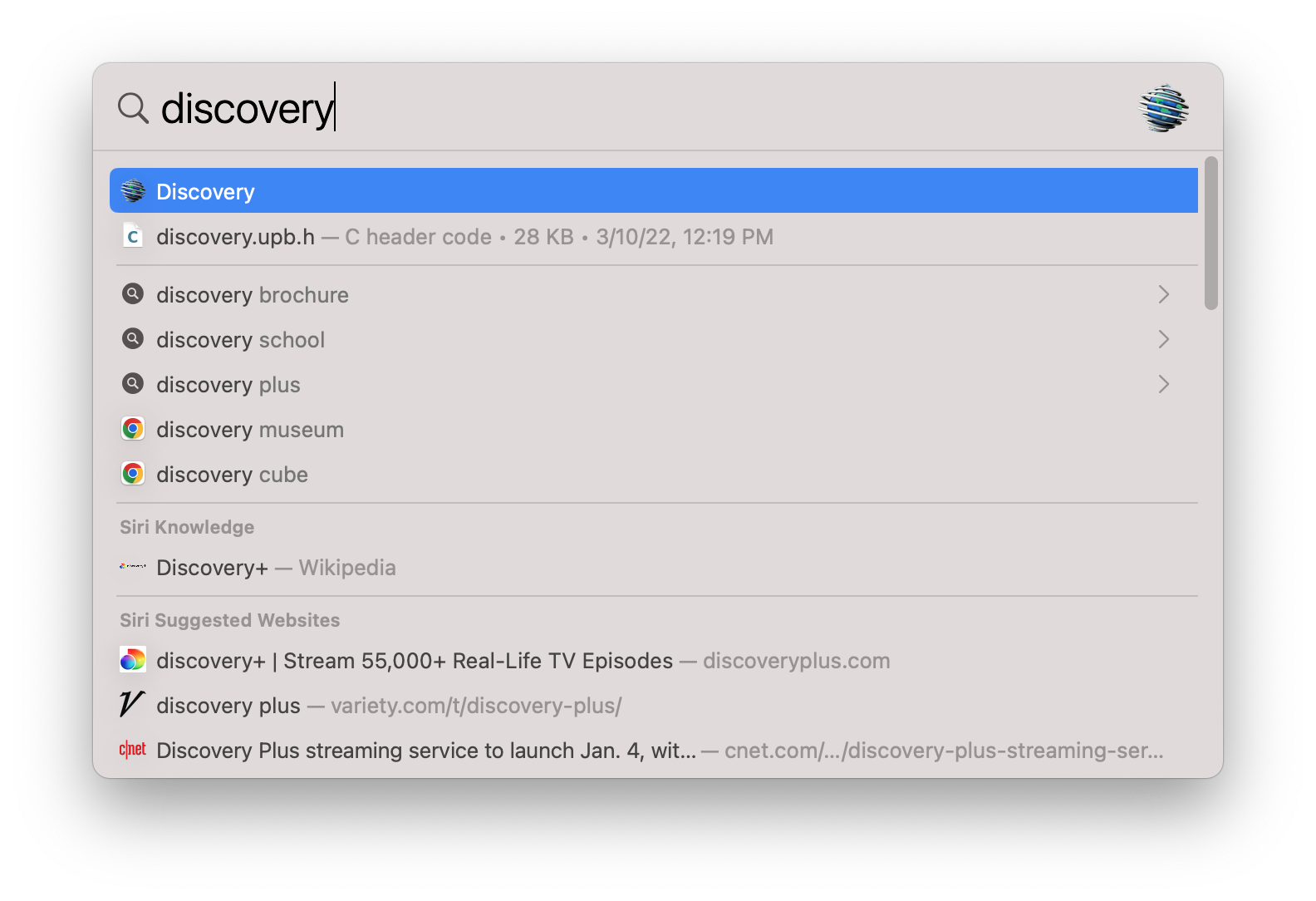
Step 2: Use Finder to locate and launch Discovery.
Step 3: The sensor appears under _ouster-lidar._tcp. Click it to view all sensor details.